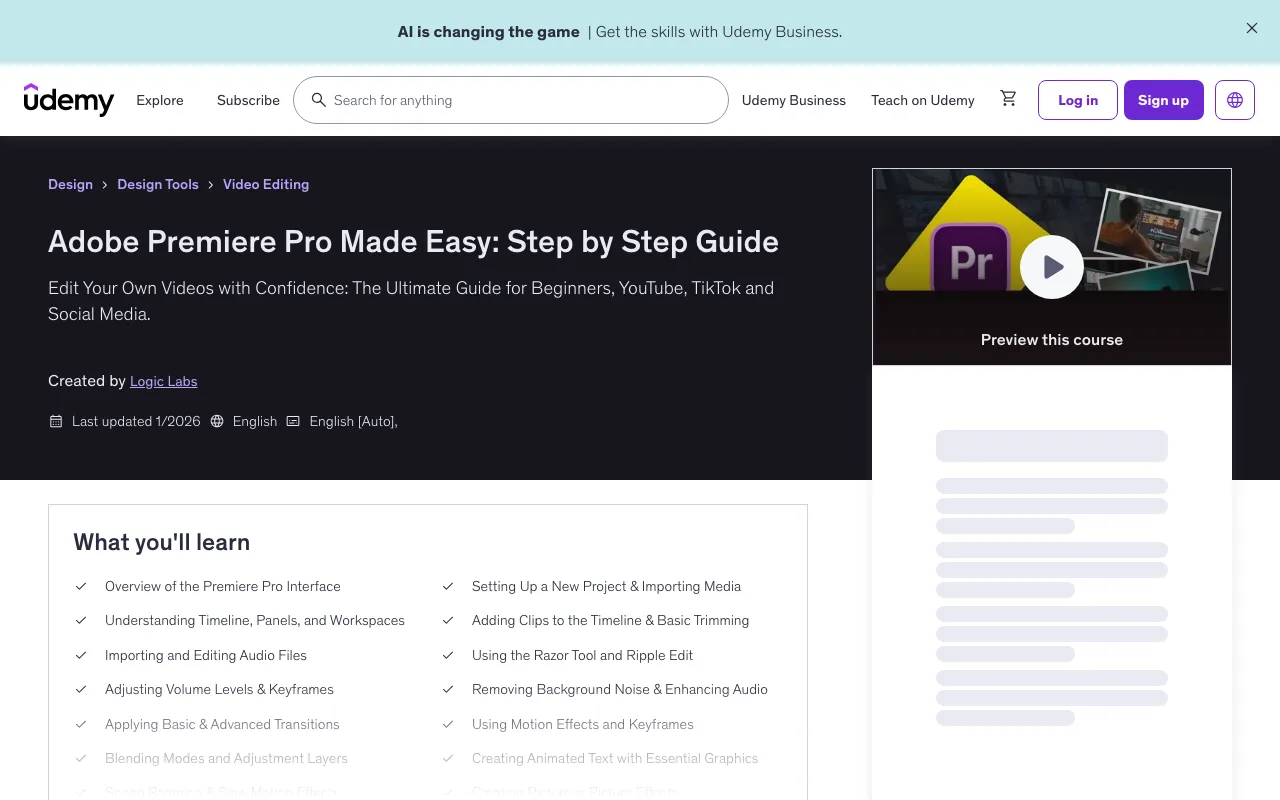
Adobe Premiere Pro Made Easy: Step by Step Guide
Last updated: Oct 2025
📚 What You'll Learn
- Overview of the Premiere Pro Interface
- Setting Up a New Project & Importing Media
- Understanding Timeline, Panels, and Workspaces
- Adding Clips to the Timeline & Basic Trimming
- Importing and Editing Audio Files
- Using the Razor Tool and Ripple Edit
- Adjusting Volume Levels & Keyframes
- Removing Background Noise & Enhancing Audio
- Applying Basic & Advanced Transitions
- Using Motion Effects and Keyframes
- Blending Modes and Adjustment Layers
- Creating Animated Text with Essential Graphics
- Speed Ramping & Slow Motion Effects
- Creating Picture in Picture Effects
📋 Course Requirements
- No prior video editing experience is required!
- Basic computer skills
- Adobe Premiere Pro software
- Computer with internet access
- Adobe Premiere Pro installed
- Sufficient storage space for video files
🎬 Course Description
Hey Everyone,
Welcome to the essential starting point for mastering video editing with Adobe Premiere Pro Made Easy: Step by Step Guide! If you've ever been excited to edit your own videos but felt intimidated by the software's complexity, this course is designed specifically for you. I strip away the confusing jargon and advanced features, providing a clear, step by step roadmap to confidently navigate the industry standard editing platform. Whether you dream of launching a YouTube channel, creating impactful social media content, or producing professional videos for your business, this guide ensures you gain real, practical skills from the very first lesson, regardless of your current experience level.
This course guarantees a strong technical foundation in Premiere Pro. You will begin by mastering the software's interface, learning how to customize your workspace and establishing a flawless project workflow that saves time and prevents organizational headaches. The core of the training focuses on efficient editing techniques: learning to use the Razor Tool, Ripple Delete, and other essential shortcuts to quickly assemble, trim, and refine your footage into a coherent, flowing sequence.
A truly professional video requires polished visuals and crystal clear audio. You will learn how to go beyond basic cuts by incorporating smooth transitions, controlling clip speed (for slow or fast motion effects), and applying keyframes to add simple, engaging movements.
Videos become truly complete with effective titles and graphics. This section teaches you how to utilize the Essential Graphics Panel to create sharp, professional text overlays, lower thirds, and credits. You will learn simple but effective animation techniques to make your text dynamic and engaging. Finally, I cover the vital process of taking your finished sequence and preparing it for the world. You will learn the exact, optimal export settings (H.264, bitrate, resolution) for various platforms, including YouTube, TikTok, and web distribution, guaranteeing the highest quality and best viewer experience.
- How to navigate and customize the Premiere Pro interface
- Importing, organizing, and managing your media
- Basic editing techniques: cutting, trimming, moving clips
- Working with audio, music, and voiceovers
- Adding titles, transitions, and simple effects
- Basic color correction and audio adjustment
- Exporting videos for YouTube, social media, or personal use
- Time saving tips and best practices used by professionals
This guide is explicitly tailored for the absolute beginner, complete novice, or frustrated self taught editor. It is perfect for aspiring content creators, vloggers, small business owners, and students who need a structured, jargon free introduction to video editing.
I have confident this course will provide you with the skills you need. If you are not satisfied, you are covered by Udemy's 30-Day Money Back Guarantee. Enroll today and start your journey to becoming a confident video editor!
Let's get started!
👥 Target Audience
- Absolute Beginners with zero video editing experience
- Anyone who has felt intimidated by Adobe Premiere Pro and wants a patient, clear guide
- Small Business Owners who want to create their own marketing videos
- Families & Hobbyists who want to edit vacation videos, weddings, or personal projects
📖 Course Content Overview
- Overview of the Premiere Pro Interface
- Setting Up a New Project & Importing Media
- Understanding Timeline, Panels, and Workspaces
- Adding Clips to the Timeline & Basic Trimming
- Using the Razor Tool and Ripple Edit
- Understanding Tracks and Layering Clips
- Importing and Editing Audio Files
- Adjusting Volume Levels & Keyframes
- Removing Background Noise & Enhancing Audio
🚀 Direct Download Link
Contact us on 💬WhatsApp for premium access and support.