Gamut Cascade LUTs - Nostalgic Fuji Film Creamy Tones Wedding Color Grading
Last updated: Oct 24 2025
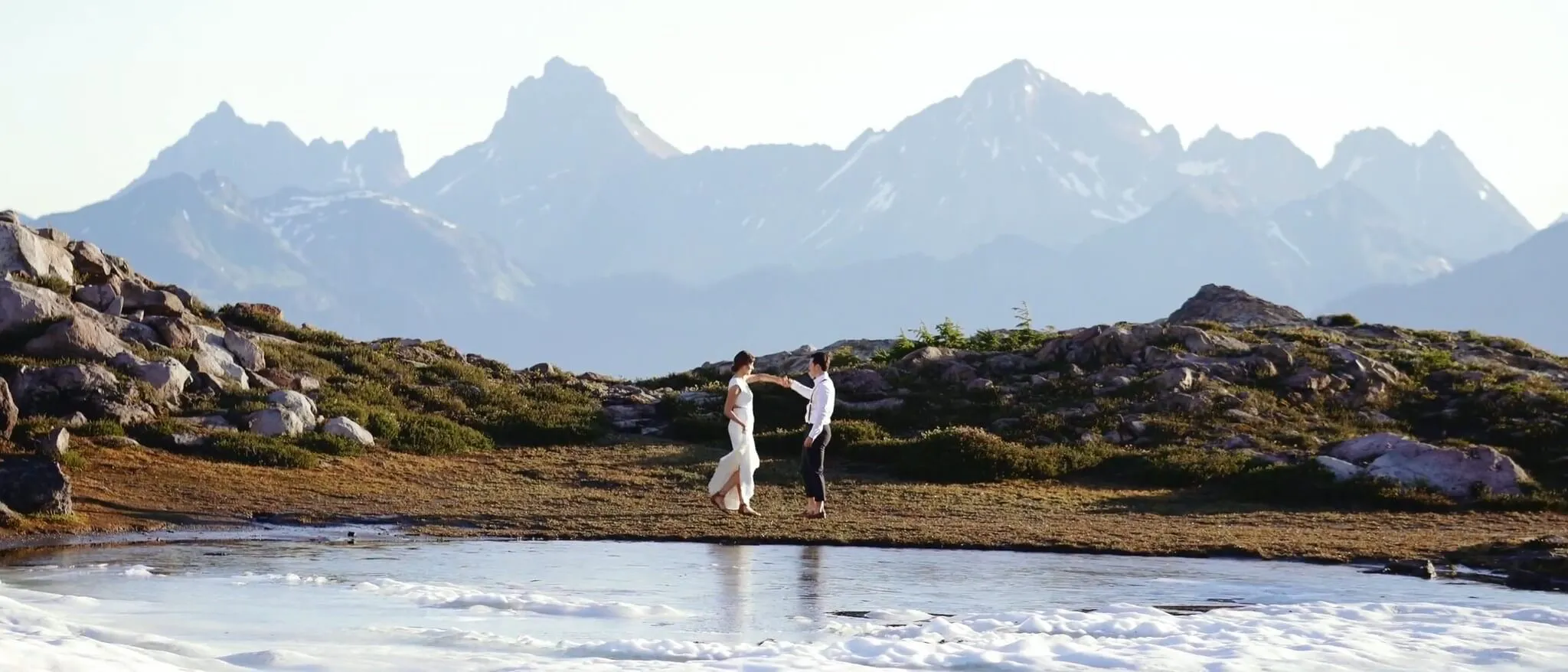
Overview
Inspired by Portra and Fuji film stocks, these nostalgic creamy tone wedding film color grading LUTs are created by Gamut. Each LUT includes both a standard and a softer minus (-) version, with warm, textured colors rooted in the outdoors. They offer versatility and tailored looks for any camera or lighting scenario. Perfect for learning and reference.
Features
- Inspired by Portra and Fuji film stocks
- Nostalgic creamy tones
- Wedding-specific color grading
- Standard and softer versions available
- Outdoor-inspired warm colors
Contact us on 💬WhatsApp for premium access and support.
About Enj Haisch
Wedding Photography & Creator. Based in Seattle.
Cascade delivers nostalgic yet authentic tones inspired by Portra and Fuji film stocks. With warm, textured colors rooted in the outdoors, each LUT includes a standard and a softer minus (-) version—offering versatility and a tailored look for any camera or lighting scenario.
Contents
- 01 North
- 01 North-
- 02 South
- 02 South-
- 03 East
- 03 East-
- 04 West
- 04 West-
- 05 B&W
- 05 B&W-
- 06 Flash
- TOOL – Interior HSL
Technical Specifications
- System Requirements: Windows and Mac systems
- Software Compatibility: Compatible with Sony Vegas, Premiere Pro CC, After Effects CC, FCPX, DaVinci Resolve, etc.
- File Format: .CUBE format
- File Size: Approximately 5MB
- Transfer Format: .zip file
- Download Method: Baidu Netdisk/Cow Transfer (VIP member exclusive high-speed access)
Product Images
Installation Guide
Installing LUTs in Final Cut Pro X
- Open FCPX software, find the [Effects] panel - [Color] - [Custom LUT] and add it to the video
- In the [LUT] parameter - [Select Custom LUT...] select the LUTS folder or .cube file you want to load
- Note: If you select the LUTS folder, you can load the entire folder and keep it in the [LUT] parameter for easy classification management, but try not to use Chinese characters and special characters
Installing LUTs in Premiere Pro
First open the following path: Mac system: /Library/Application Support/Adobe/Common/LUTs Windows system: \Program Files\Adobe\Common\LUTs Copy for example "Log to Rec709" LUTs to the folder above. Note: For easy classification, you can create a new folder in the path above.
Installing LUTs in DaVinci Resolve
First open the following path: Mac system: Macintosh HD/Library/Application Support/Blackmagic Design/DaVinci Resolve/LUT Windows system: C:\ProgramData\Blackmagic Design\DaVinci Resolve\Support\LUT Copy for example "Log to Rec709" LUTs to the folder above.
🚀Direct Download Link
Contact us on 💬WhatsApp for premium access and support.