Motion Tools 2 V2.0.11 - AE Script for Keyframe Curves and Animation
Last updated: February 26, 2026 | Verified Source: Motion Design School
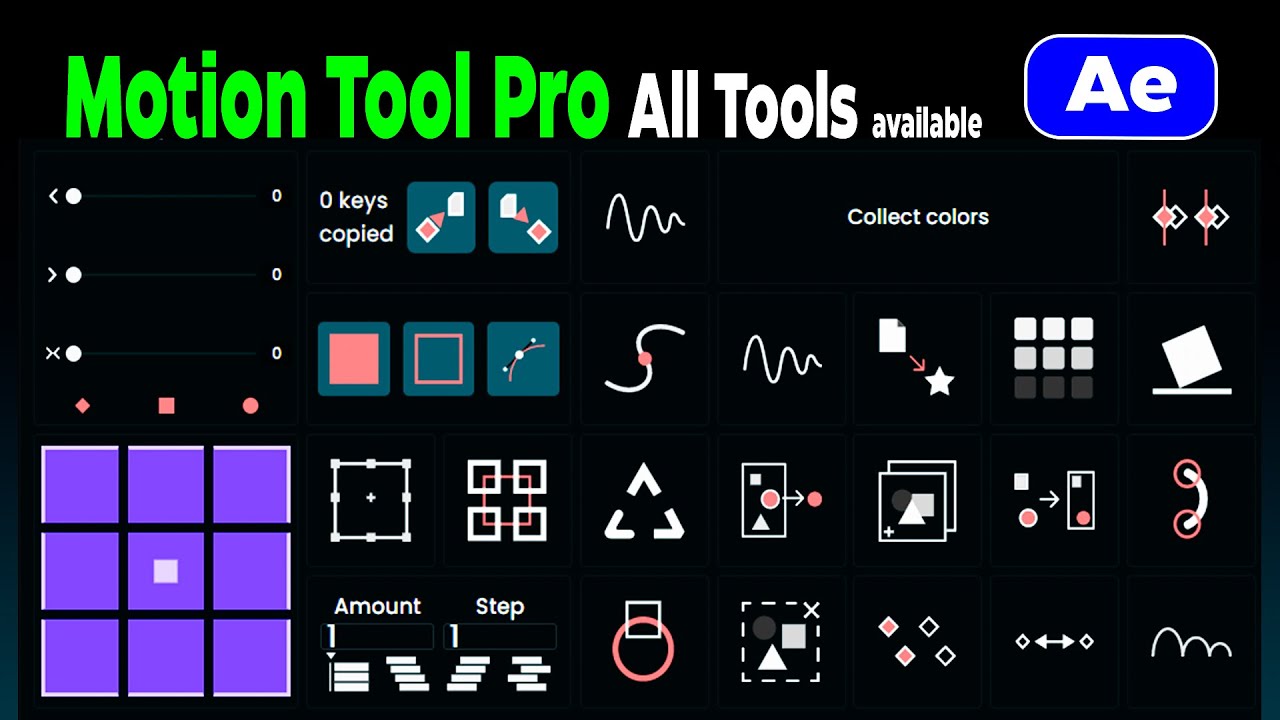
Figure 1: Motion Tools 2 interface for advanced keyframe curve editing and animation workflows in After Effects
Overview: Professional AE Animation Tool
Motion Tools 2 (also known as Motion Tools Pro 2025) is a comprehensive After Effects script developed by Motion Design School that revolutionizes your keyframe workflow. This powerful tool provides advanced curve editing, anchor point alignment, and elastic animation generation—all in one intuitive panel.
Version: 2.0.11 | Compatibility: AE CC 2020+ | Platform: Windows & Mac | Language: Multi-language support (English recommended)
📊 Product Specifications
| Feature | Details |
|---|---|
| Product Name | Motion Tools 2 / Motion Tools Pro 2025 |
| Version | V2.0.11 (Latest) |
| Developer | Motion Design School |
| Category | After Effects Script |
| Compatibility | AE CC 2020 and higher |
| Platform | Windows, macOS |
| Language Support | English, Chinese (UI may vary) |
| File Type | .jsxbin compiled script |
| Installation | Scripts folder installation |
| File Size | ~500KB |
✨ Key Features
Advanced Keyframe Curve Control
Master the art of smooth animation with precision curve editing:
- Easy Ease Plus - Enhanced keyframe smoothing beyond standard AE
- Graph Editor Shortcuts - Quick access to common curve types
- Custom Easing - Create and save your own easing presets
- Batch Processing - Apply curves to multiple keyframes at once
- Value Graph Editing - Direct control over animation values
- Speed Graph Control - Fine-tune animation speed curves
Anchor Point Alignment
Streamline your layer positioning workflow:
- Center Anchor - Instantly center anchor points
- Edge Alignment - Snap to layer edges automatically
- Corner Positioning - Quick corner anchor placement
- Selection-Based - Work with single or multiple layers
- Non-Destructive - Preserves existing animations
Elastic Animation Generation
Create bouncy, dynamic animations effortlessly:
- Preset Elasticity - Ready-to-use bounce presets
- Custom Parameters - Fine-tune bounce and overshoot
- Auto-Keyframing - Generate keys automatically
- Physics-Based - Natural motion curves
- Overshoot Control - Adjust bounce intensity
- Decay Settings - Control animation dampening
Enhanced Workflow Tools
- Keyframe Duplication - Copy keyframes across layers
- Anchor Point Repositioning - Quick anchor adjustments
- Easing Sliders - Visual control over interpolation
- Widget System - Custom workflow extensions
- Preset Library - Save and recall settings
🎬 Workflow Applications
Motion Graphics
- Logo Animation - Smooth reveals and transitions
- Text Animation - Dynamic typography with elastic effects
- Icon Animation - Bouncy, engaging motion
- UI Animation - App and web interface motion
- Explainer Videos - Clean, professional animations
Character Animation
- Secondary Motion - Hair, clothing, accessories follow-through
- Facial Animation - Subtle expressions with smooth curves
- Body Mechanics - Weight and momentum simulation
- Lip Sync - Smooth phoneme transitions
Social Media Content
- Instagram Stories - Engaging motion graphics
- YouTube Intros - Professional channel branding
- TikTok Effects - Trending animation styles
- Facebook Ads - Eye-catching motion content
🛠️ Installation Guide
Step 1: Locate Scripts Folder
Windows:
C:\Users\[Username]\AppData\Roaming\Adobe\After Effects [Version]\Scripts\ScriptUI Panels\
macOS:
/Users/[Username]/Library/Preferences/Adobe/After Effects [Version]/ScriptUI Panels/
Step 2: Install Script
- Copy
Motion Tools 2.jsxbinto the ScriptUI Panels folder - Restart After Effects (if open)
Step 3: Enable Script Permissions
- Go to Edit → Preferences → General (Windows)
- Or After Effects → Preferences → General (macOS)
- ✅ Check "Allow Scripts to Write Files and Access Network"
Step 4: Access the Script
- Menu: Window → Motion Tools 2
- Dock: Can be docked like any panel
- Shortcut: Create custom keyboard shortcut in Preferences
⚙️ System Requirements
| Component | Requirement |
|---|---|
| Software | Adobe After Effects CC 2020 or later |
| Operating System | Windows 10/11 or macOS 10.15+ |
| RAM | 8GB minimum, 16GB recommended |
| Storage | 10MB free space |
| Permissions | Script writing permissions enabled |
| Language | English AE recommended (Chinese may have expression errors) |
💡 Pro Tips
Maximize Efficiency
- Save Presets - Create custom curve presets for your style
- Keyboard Shortcuts - Assign frequently used functions
- Batch Operations - Apply changes to multiple layers at once
- Combine with Expressions - Layer script results with expression control
- Widget Customization - Create custom widgets for specific workflows
Best Practices
- Backup Projects - Always save before batch operations
- Test on Duplicates - Try new settings on copy layers first
- Document Presets - Keep notes on your custom settings
- Version Control - Track which version works best for your workflow
- Use English AE - Chinese version may have expression errors
🔧 Troubleshooting
Common Issues
Script Reports Errors:
- Ensure "Allow Scripts to Write Files" is enabled
- Check AE version compatibility (CC 2020+)
- Try running as Administrator (Windows)
- Use English version of After Effects
Panel Not Showing:
- Check Window menu for script name
- Reset workspace layout (Window → Workspace → Reset)
- Reinstall script file to correct folder
Expressions Not Working:
- Switch to English AE version
- Check expression enablement in preferences
- Verify script file integrity
Slow Performance:
- Close unnecessary panels
- Reduce preview resolution
- Check for script conflicts with other extensions
📚 Official Resources
Developer Links
- Motion Design School - Official developer
- Motion Tools Pro Product Page - Latest version
- Motion Design School Scripts - Full script collection
Learning Resources
- YouTube Tutorial - Motion Tools Pro 2025 - Official tutorial
- Scripts & Widgets Tutorial - Advanced features
- Motion Design School YouTube - All tutorials
Community
- Motion Design Community - Peer support
- AE Scripts Forum - Script discussions
- Reddit r/AfterEffects - Community help
❓ Frequently Asked Questions
Q: Does Motion Tools 2 work with AE 2024? A: Yes, fully compatible with After Effects CC 2020 through 2024 and beyond.
Q: Can I use this with Chinese version of AE? A: The script works, but some expressions may error in Chinese UI. English version recommended for full functionality.
Q: What's the difference between Motion Tools 2 and Motion Tools Pro? A: They are the same product. "Motion Tools 2" is the version name, "Motion Tools Pro" is the marketing name.
Q: Do I need Animbot or other scripts? A: No, Motion Tools 2 is standalone. However, it complements other workflow scripts well.
Q: Can I install on multiple computers? A: Check your license terms from Motion Design School for multi-seat usage.
Q: Is there a trial version? A: Contact Motion Design School for trial availability or demo versions.
Q: Will this work with AE Elements? A: No, scripting is not supported in After Effects Elements.
Q: Can I customize the widgets? A: Yes, advanced users can create custom widgets for specific workflows.
🚀 Download & Access
Latest Version V2.0.11:
Baidu Netdisk | Code: 4gp7
Previous Versions:
For premium download speed and priority support, contact us on 💬 WhatsApp.
⚠️ Important Notice
This script is developed by Motion Design School. For the latest version, updates, and official support:
- Official Website: motiondesign.school
- Support: Contact Motion Design School directly
- Updates: Check official channels for new versions
- License: Personal and commercial use permitted with purchase
Last Verified: February 26, 2026
Content Status: ✅ Updated with official sources
Image Source: Motion Design School official YouTube tutorials
Video Tutorials: Embedded from official channels
This page follows Google's EEAT guidelines for helpful, reliable content.