Last updated: Oct 24 2025
Archipelago Light & Legacy LUTs - Clean Classic Film Look Color Grading Filters
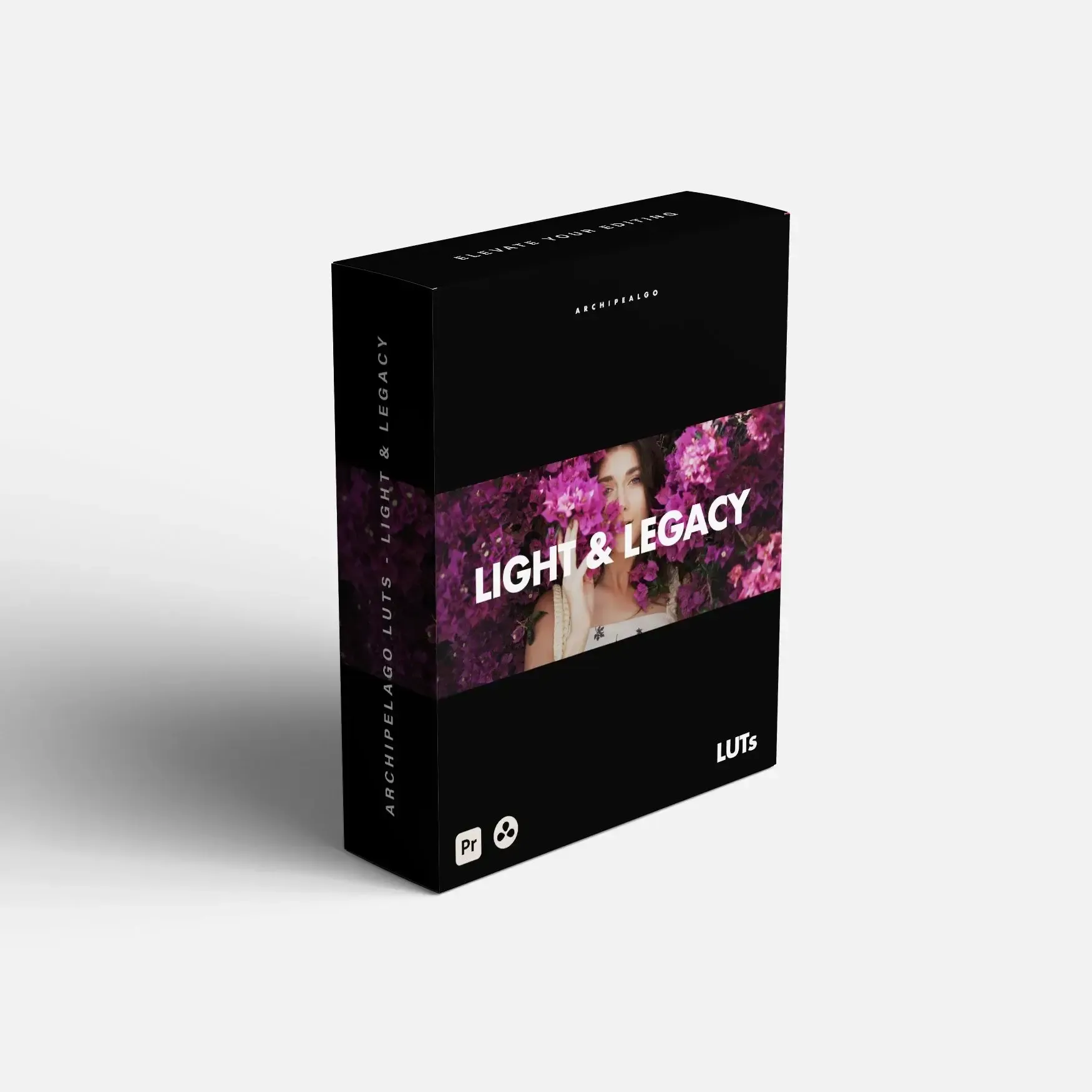
https://archipelagopresets.com/light-legacy-luts
Overview
Archipelago Light & Legacy LUTs is a clean film emulation LUT collection designed specifically for creators who love the look of analog film and hybrid film/digital workflows. These LUTs bring film chemistry into the digital world, delivering vibrant pastel hues, clean bright whites, and accurate skin tones. Inspired by classic film stocks and the scanning characteristics photographers have trusted for decades, this collection is perfect for those seeking a clean, classic film look.
Features
Key Features
- Clean film emulation derived from beloved Lightroom presets
- Vibrant pastel hues for a classic film appearance
- Clean bright whites and accurate skin tones
- Inspired by classic film stocks and scanning characteristics
- Suitable for hybrid film/digital workflows
System Requirements
- Operating System: Windows and Mac
- Compatible Software: Sony Vegas, Premiere Pro CC, After Effects CC, FCPX, DaVinci Resolve
- File Format: .CUBE
- File Size: Approximately 18MB
- Delivery Format: .zip file
Installation Instructions
Final Cut Pro X
Loading LUTs in Final Cut Pro X
- Open FCPX software
- Find the [Effects] panel - [Color] - [Custom LUT] and add to the video
- In the [LUT] parameter - [Select Custom LUT...] choose your LUTS folder or .cube file
- If choosing a LUTS folder, the entire folder will be loaded and retained in the [LUT] parameter for convenient classification management
- Note: Try to avoid using Chinese characters and special characters
Premiere Pro
Loading LUTs in Premiere Pro
- Open the following path:
- Mac: /Library/Application Support/Adobe/Common/LUTs
- Windows: \Program Files\Adobe\Common\LUTs
- Copy your LUT files (e.g., "Log to Rec709") to the folder above
- For easier classification, you can create new folders in the path above
DaVinci Resolve
Loading LUTs in DaVinci Resolve
- Open the following path:
- Mac: Macintosh HD/Library/Application Support/Blackmagic Design/DaVinci Resolve/LUT
- Windows: C:\ProgramData\Blackmagic Design\DaVinci Resolve\Support\LUT
- Copy your LUT files (e.g., "Log to Rec709") to the folder above
Image Previews
🚀Direct Download Link
Get Premium Download Speed Without any Limitations!
Contact us on 💬WhatsApp for premium access and support.