Fujicolor C200 35MM Film Simulation Davinci Resolve Color Grading Nodes + LUT
Last updated: Oct 24 2025
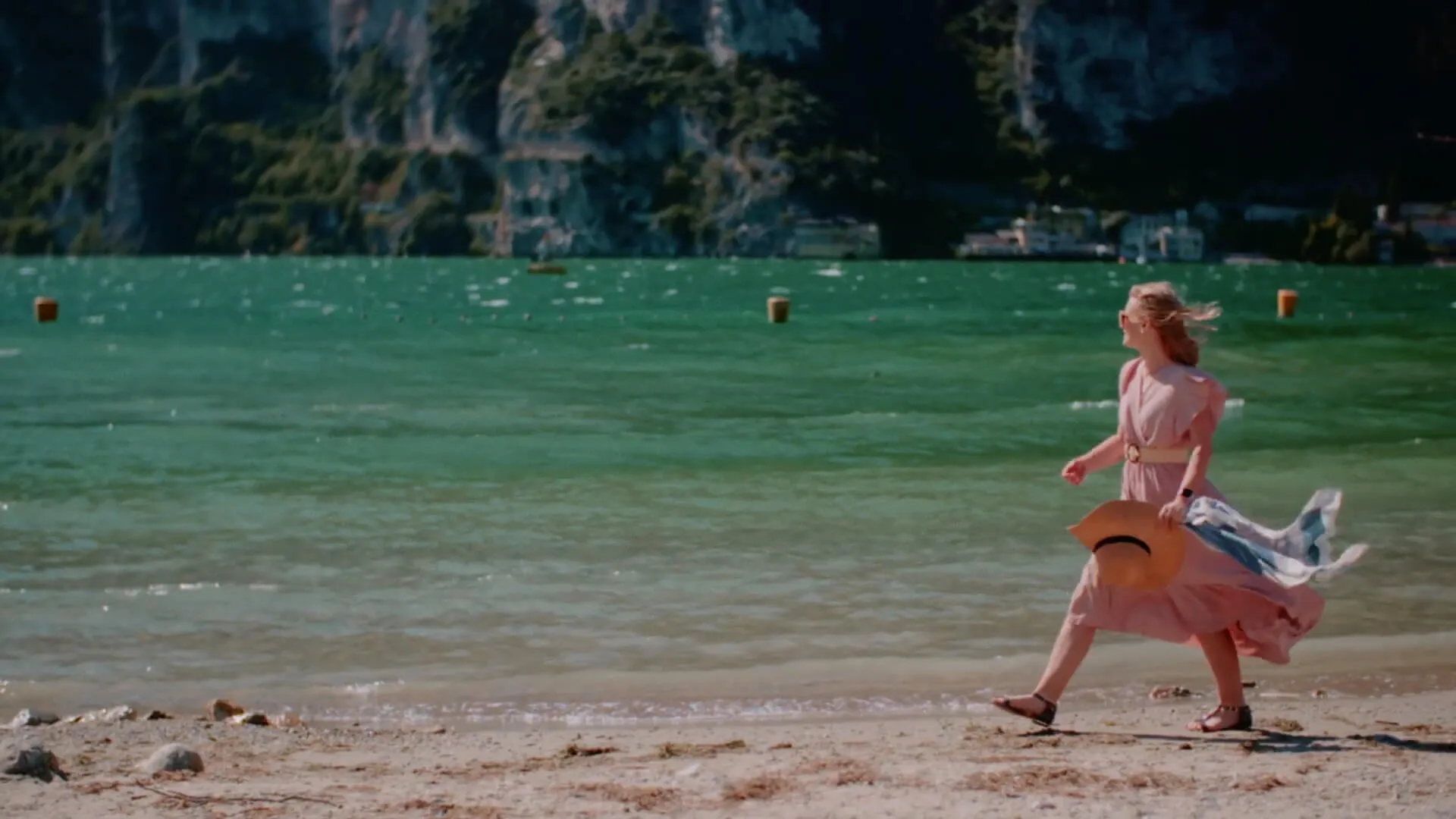
Product Overview
Fujicolor C200 35MM Film Simulation Davinci Resolve Color Grading Nodes + LUT is a classic Fujicolor C200 35MM film simulation Davinci Resolve grading node and LUT pack produced by Analogica Lab. Perfect for photographers, videographers and content creators looking to add nostalgic and cinematic feel to their work. Highly recommended for learning and reference!
Version 2.0 Update Content:
- Improved LUTs, monitoring LUTs, digital effects RGB separation, lens blur
- New BALI GREEN LUT (Bali Green)
- New POWERGRADE grading nodes (DVR Powergrade)
- New video course (Chinese subtitles)
- New RAW original gray video (practice material)
Included Content:
- 5 clean LUTs (2 variants per LUT)
- 1 PowerGrade grading node (DVR Powergrade)
- Complete iPhone LUT collection
- 5 basic monitoring LUTs
- RGB split effect (DVR Powergrade)
- Vintage lens blur (DVR Powergrade)
- 26 exclusive video sets (color correction and color grading)
- 27 S-Log3 & D-Log RAW files for practice
- System Requirements: Win+Mac
- Software Compatibility: Davinci Resolve Studio
- File Format: .drx+.dpx+.cube
- File Size: 28Mb
- Professional film simulation for nostalgic and cinematic feel
Installation Guide
DaVinci Resolve
How to Install DCTL Plugins in DaVinci Resolve?
- Open DaVinci Resolve
- Go to the "Fusion" page
- In the "DCTL" section, click "Install DCTL"
- Navigate to your DCTL file location and select it
- The plugin will appear in the DCTL effects panel
How to Install POWERGRADE Color Nodes?
- Open DaVinci Resolve
- Go to the "Color" page
- In the "OpenFX" section, click "Import"
- Select your .drx PowerGrade file
- The node will be available in your OpenFX effects
Product Showcase
01. Morocco Orange
The first LUT brings warm, cinematic light to your shots - giving oranges depth and richness while subtle cool tones hide in the shadows.
02. Ferrari Red
The second LUT makes reds really stand out, introducing beautiful color contrast by adding a strong blue appearance in the shadows.
03. Hong Kong Blue
The third LUT adds more film-like appearance to images while enhancing color density. The shadows lean toward blue, while highlights have a film-like green.
04. Amsterdam Silver
Reduces saturation of greens and blues while carefully adding more intense red tones to skin. This LUT is the most neutral of the 5 LUTs and uses traditional bleach bypass techniques.
05. Bali Green (NEW)
A brand new look added to my color series. It brings a soft, movie-like beauty with a subtle green hue that complements the Powergrades I developed.
Five Styles Compatible with Any Camera
All 5 styles are carefully crafted as LUT files - they work perfectly with any camera of your choice once your material is converted to REC709 format (Complete tutorial included)
🚀Direct Download Link
Contact us on 💬WhatsApp for premium access and support.