Paper Slide Transitions for DaVinci Resolve - Professional Page Flip Effects
Last updated: February 26, 2026 | Official Source: VideoHive
Product Overview
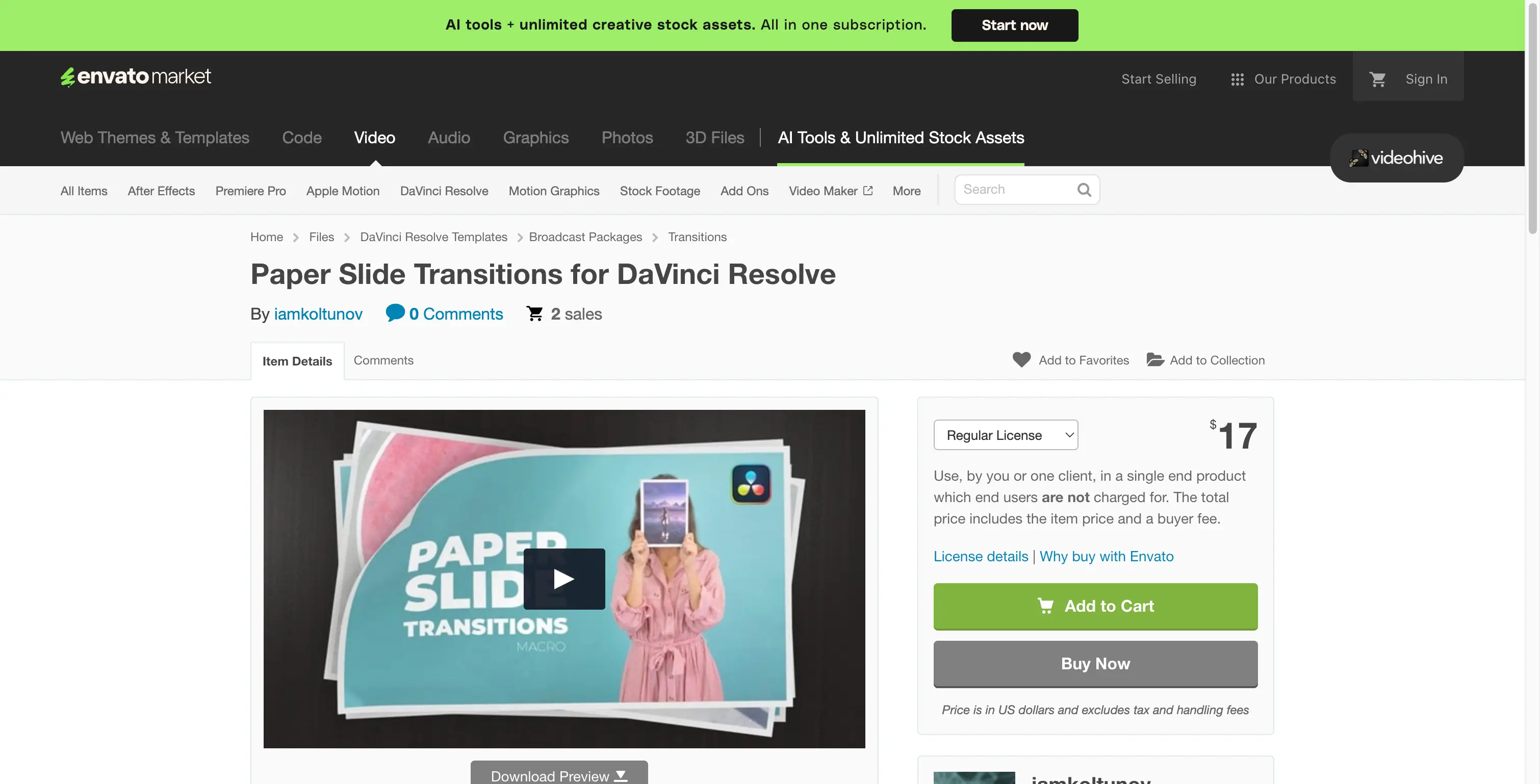
Paper Slide Transitions for DaVinci Resolve is a professional transition pack featuring fantastic-looking animated 3D paper slide turn effects. This comprehensive collection provides video editors with ready-to-use transitions that add a unique, creative touch to any project.
Designed specifically for DaVinci Resolve, these transitions feature realistic paper sliding animations that create smooth, professional scene changes. The pack is ideal for photo albums, music videos, promotional content, corporate presentations, and artistic short films where a clean, organic transition style is desired.
- Format: drfx (DaVinci Resolve preset format)
- File Size: 29MB (lightweight, quick download)
- Resolution: Full HD 1920×1080
- Installation: Double-click automatic installation
- Requirements: DaVinci Resolve 17 or higher
- Plugins: No third-party plugins required
What Are Paper Slide Transitions?
Paper slide transitions simulate the natural movement of paper pages sliding across the screen, creating an organic and visually appealing way to transition between video clips. Unlike harsh cuts or generic wipes, these transitions add:
- Visual Interest: The 3D paper animation adds depth and dimension
- Professional Polish: Smooth, refined motion that elevates production quality
- Narrative Flow: Natural page-turning metaphor perfect for storytelling
- Versatile Style: Works with various content types from corporate to creative
Key Features
🎬 Realistic 3D Paper Animation
Each transition features meticulously crafted 3D paper slide animations that mimic real-world paper movement. The physics-based motion creates believable, organic transitions that feel natural to viewers.
📦 Complete Transition Collection
The pack includes multiple variations of paper slide transitions, providing options for different editing scenarios:
- Horizontal slide transitions
- Vertical slide transitions
- Corner peel effects
- Multi-layer slide combinations
- Variable speed options
⚡ No Plugins Required
Unlike many transition packs that require additional software, Paper Slide Transitions works natively within DaVinci Resolve. This means:
- Faster workflow with no dependency management
- Better stability with fewer compatibility issues
- Simplified project sharing with collaborators
- Reduced system resource usage
🎨 Fully Customizable
Every transition can be adjusted to match your project's specific needs:
- Duration: Extend or shorten transition timing
- Direction: Reverse or modify slide direction
- Color: Adjust paper color and tone
- Shadows: Modify shadow intensity and direction
- Motion Blur: Control blur amount for different speeds
📥 Simple Installation
The drfx format enables one-click installation:
- Download the transition pack
- Double-click the .drfx file
- DaVinci Resolve automatically imports the transitions
- Access from Effects Library > Titles or Transitions
🎓 Video Tutorial Included
Comprehensive video tutorials guide you through:
- Installation process
- Basic usage and application
- Advanced customization techniques
- Creative tips and best practices
Technical Specifications
| Specification | Details |
|---|---|
| Product Name | Paper Slide Transitions for DaVinci Resolve |
| File Format | .drfx (DaVinci Resolve preset) |
| File Size | 29MB |
| Resolution | 1920×1080 (Full HD) |
| Frame Rate | Compatible with all standard frame rates |
| Software | DaVinci Resolve 17 or higher |
| Render Engine | Compatible with all DaVinci Resolve render engines |
| Color Space | Works with all color spaces (Rec.709, Rec.2020, DaVinci Wide Gamut) |
| Third-Party Plugins | None required |
| Operating System | Windows, macOS, Linux |
System Requirements
| Component | Minimum | Recommended |
|---|---|---|
| Software | DaVinci Resolve 17 | DaVinci Resolve 18+ |
| Operating System | Windows 10, macOS 10.15, Linux | Latest OS version |
| RAM | 8 GB | 16 GB or more |
| GPU | 2 GB VRAM | 4 GB+ VRAM for smooth playback |
| Storage | 100 MB free space | SSD for faster loading |
| Display | 1920×1080 resolution | Higher resolution for detailed editing |
Installation Guide
Step 1: Download the Transition Pack
Download the transition pack using the link provided below. The file will be in .drfx format.
Step 2: Install in DaVinci Resolve
Method A - Double-Click Installation:
- Locate the downloaded .drfx file
- Double-click the file
- DaVinci Resolve will launch automatically and import the transitions
Method B - Manual Installation:
- Open DaVinci Resolve
- Go to Effects Library (top left corner)
- Right-click on Titles or Transitions folder
- Select "Install Preset" or "Install Macro"
- Navigate to and select the .drfx file
Step 3: Access Your Transitions
Once installed, find your transitions in:
- Effects Library → Titles → Paper Slide Transitions
- Or Effects Library → Transitions → Paper Slide
Step 4: Apply to Your Timeline
- Select the transition from the Effects Library
- Drag and drop it between two clips on your timeline
- Adjust the duration by dragging the edges
- Preview the transition in the viewer
How to Use Paper Slide Transitions
Basic Application
- Import Your Footage: Bring your video clips into the Media Pool
- Create Your Timeline: Arrange clips in your desired sequence
- Open Effects Library: Click "Effects" in the top menu
- Locate Transitions: Find Paper Slide Transitions in Titles or Transitions
- Drag and Drop: Place the transition between two clips
- Adjust Duration: Click and drag the transition edges to modify length
- Preview: Play back to see the transition in action
Advanced Customization
Modify Transition Properties:
- Select the transition on your timeline
- Open the Inspector panel (top right)
- Adjust available parameters:
- Duration: Transition length in frames
- Direction: Slide direction (left, right, up, down)
- Easing: Motion curve for smooth acceleration/deceleration
- Shadow: Shadow opacity and angle
- Paper Color: Tint and saturation adjustments
Create Custom Variations:
- Apply a base transition to your timeline
- Modify parameters to your preference
- Right-click the transition
- Select "Save as New Preset"
- Name your custom variation for future use
Creative Use Cases
📸 Photo Albums & Slideshows
Paper slide transitions are perfect for photo montages, wedding albums, and memory reels. The page-turning metaphor naturally fits the concept of flipping through photographs.
Best Practices:
- Use moderate transition speeds (0.5-1 second)
- Match transition direction to photo composition
- Consider adding subtle page curl sound effects
🎵 Music Videos
Add visual interest to music videos with dynamic paper slide transitions that match the rhythm and energy of the music.
Best Practices:
- Sync transition timing with beat drops
- Use faster transitions for upbeat sections
- Slower transitions for emotional moments
🏢 Corporate Presentations
Professional yet creative transitions for company videos, product launches, and training materials.
Best Practices:
- Keep transitions subtle and consistent
- Use standard directions (left-to-right reads naturally)
- Maintain brand color consistency
🎬 Promotional Videos
Enhance marketing content, social media ads, and promotional reels with eye-catching transitions.
Best Practices:
- Match transition style to brand personality
- Use transitions to emphasize key messages
- Keep mobile viewing in mind (clear, visible transitions)
📚 Educational Content
Perfect for tutorial videos, online courses, and educational presentations where content flows logically from one topic to the next.
Best Practices:
- Use consistent transitions throughout
- Keep timing predictable for viewer comfort
- Consider adding section markers between major topics
Tips for Best Results
Timing & Pacing
| Content Type | Recommended Duration |
|---|---|
| Fast-paced content | 0.3 - 0.5 seconds |
| Standard editing | 0.5 - 1.0 seconds |
| Slow, dramatic content | 1.0 - 2.0 seconds |
Direction Psychology
- Left to Right: Feels natural, forward-moving (Western reading direction)
- Right to Left: Creates tension, backward glance
- Top to Bottom: Revealing, unveiling effect
- Bottom to Top: Uplifting, ascending feeling
Color Matching
- Match paper color to your video's color grade
- Warm tones for nostalgic, vintage content
- Cool tones for modern, corporate content
- Neutral white for clean, minimal aesthetic
Layering Techniques
- Combine with subtle sound effects for enhanced realism
- Layer with light leaks or film grain for vintage look
- Add subtle zoom or pan to underlying clips for dynamic feel
Why Choose Paper Slide Transitions?
✅ Professional Quality
Crafted by experienced motion designers, these transitions meet professional broadcast standards. The 3D animation is rendered with attention to lighting, shadows, and physics, creating believable paper movement.
✅ Time-Saving Solution
Creating custom paper slide animations from scratch requires:
- 3D modeling software knowledge
- Animation skills
- Rendering time
- Trial and error refinement
This pack provides ready-to-use transitions that save hours of work while delivering professional results.
✅ Consistent Visual Language
Using a cohesive transition pack ensures your project maintains a consistent visual style throughout. All transitions share the same design language, creating a unified, professional appearance.
✅ Versatile Application
From YouTube videos to broadcast television, these transitions adapt to various production scales and styles. The neutral paper aesthetic works across genres and content types.
✅ No Ongoing Costs
Unlike subscription-based transition services, this is a one-time purchase with permanent access. Use the transitions in unlimited projects without additional licensing fees.
About the Source
VideoHive is part of Envato Market, one of the world's largest marketplaces for creative digital assets. Founded in 2007, Envato serves millions of creative professionals worldwide.
Trust Indicators
| Factor | Details |
|---|---|
| Marketplace | Envato Market (VideoHive) - established 2007 |
| Product Verification | All items reviewed before approval |
| Customer Reviews | Verified purchase reviews and ratings |
| Refund Policy | 7-day refund policy for defective items |
| Support | Direct author support available |
| License | Standard and extended licensing options |
Official Links
- Product Page: Paper Slide Transitions on VideoHive
- Author Profile: iamkoltunov on Creative Market
- Envato Elements: Unlimited downloads subscription
Download Options
🐌 Free Download (Standard Speed)
Baidu Netdisk (百度网盘)
- Download Link
- Extraction Code:
5hbh
Note: Free downloads may have speed limitations depending on your location and Baidu account status.
🚀 Premium Download (High Speed)
For faster downloads, priority support, and access to premium resources, contact via:
Premium members receive:
- Unlimited high-speed downloads
- Priority customer support
- Early access to new releases
- Exclusive premium-only resources
💰 Official Purchase
Support the creator by purchasing through official channels:
- VideoHive Product Page - One-time purchase with lifetime updates
- Envato Elements - Unlimited downloads subscription
Related Resources
Official DaVinci Resolve Resources
- Blackmagic Design - DaVinci Resolve - Download the latest version
- DaVinci Resolve Training - Official tutorials and certification
- DaVinci Resolve Community - User forums and support
Transition & Effects Resources
- VideoHive DaVinci Resolve Templates - Browse all DaVinci Resolve assets
- Envato Elements - Unlimited creative asset downloads
Frequently Asked Questions
What version of DaVinci Resolve do I need?
You need DaVinci Resolve version 17 or higher. The transitions are compatible with both the free version and DaVinci Resolve Studio.
Do I need any additional plugins?
No. Paper Slide Transitions works natively within DaVinci Resolve without requiring any third-party plugins or additional software.
Can I use these transitions in commercial projects?
Yes. Once downloaded or purchased, you can use these transitions in personal and commercial projects. If purchasing through VideoHive, review the specific license terms for your use case.
Can I modify the transitions?
Absolutely. All transitions are fully customizable. You can adjust duration, direction, color, shadows, and other parameters through the Inspector panel.
Are these compatible with DaVinci Resolve Studio?
Yes. The transitions work with both the free version of DaVinci Resolve and the paid Studio version.
How do I get the transitions to appear in my Effects Library?
After installing the .drfx file, restart DaVinci Resolve if the transitions don't appear immediately. Check under Effects Library > Titles or Effects Library > Transitions.
Can I share these transitions with others?
No. The transitions are licensed for your use only. Others should download or purchase their own copies through the official channels.
What if the transitions don't work after installation?
Try these troubleshooting steps:
- Restart DaVinci Resolve
- Verify you're using Resolve 17 or higher
- Check that the .drfx file downloaded completely
- Reinstall by double-clicking the .drfx file again
- Contact support if issues persist
This article references the official VideoHive product page. All product names, logos, and trademarks are property of their respective owners. Prices and availability subject to change. Last verified: February 26, 2026.