
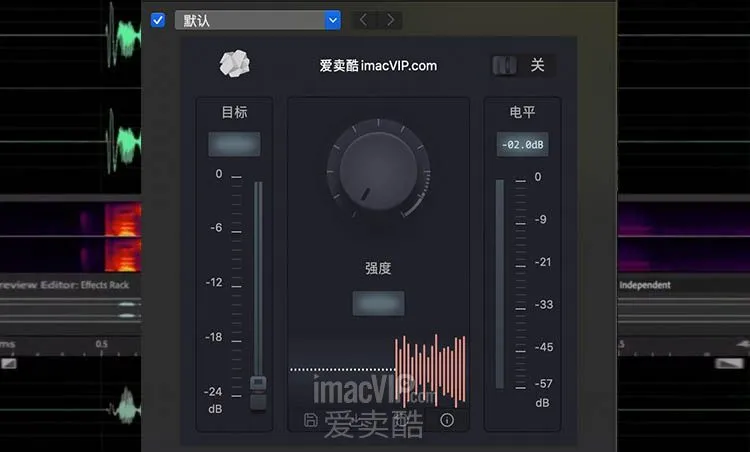
Automatically adjust volume in Final Cut Pro, Premiere Pro, DaVinci Resolve and Audition Levelmatic is a plugin that dynamically adjusts audio levels so that no part sounds too quiet or too loud. It is a common problem - your voice sounds fine, but then you step away from the microphone and it is too quiet. Or perhaps you have two people being interviewed and one is farther from the mic. Levelmatic automatically detects the areas in the audio that are too quiet or too loud and fixes them. You simply apply Levelmatic and set the target level. That is the level you want all your audio to match.
Easy setup If you want the audio to match the level you set very strictly, turn the “Intensity” knob to a higher value.
If you want the audio to keep its natural loud and quiet dynamics, turn the “Intensity” knob to a lower value. For example, for voice-over you can turn the “Intensity” knob up high, while for interviews a lower value works. Normally, to fix audio like this you would have to carefully keyframe levels, manually fixing each loud or quiet section one at a time. Levelmatic does it all for you automatically, and you can play back the result in real time.
There is an ON/OFF switch that lets you easily bypass the processed audio and compare it with the original. A real-time waveform display shows the audio in colors matching the UI before processing, and in white after processing. This waveform makes it easy to see how the levels change.
Besides the output boost slider and level meter, there are controls for easily saving and loading your own custom presets. Any custom presets you create can be shared, which is very useful if you work in a team or need to move projects between applications (such as Adobe Premiere and Audition).