
Fader is a handy fading tool that lets you create fast, consistent fades for multiple clips on the timeline. It also lets you create quick fades that fade several stacked elements at once!
System requirements: Mac OS X 10.10.2 (or later) Software requirements: FCPX 10.2 (or later) Plugin language: English File size: 3.3MB (dmg file) Installation: double-click for one-click automatic installation Usage help: screenshot showing where to use it
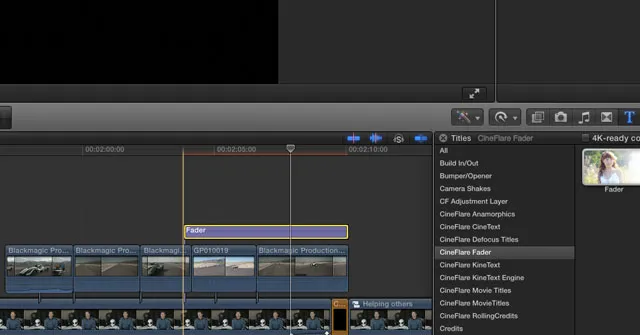
Fading multiple clips
Drag and drop the Fader title onto the timeline and stretch it across any number of clips. Choose the background color, then choose the number of gradient frames. Toggle the fader effect at the same start and end points on each clip, and you can quickly, easily and consistently fade each clip in and out.
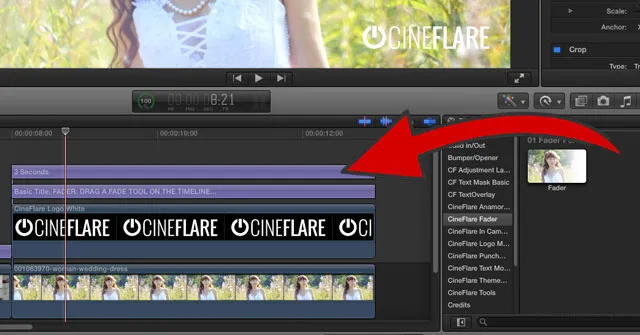
It works on everything
This is absolutely the best use of Fader. Have several stacked elements on your timeline? Usually you have a video, a logo and text, and you want one fade to affect all of them at once. Add it to that part of the project, stretch it over the area you need, set the parameters, and you’re done! Everything below the effect fades to a single color in the same way. You no longer need to add separate fade transitions for each element and carefully match each one. Fast and simple!
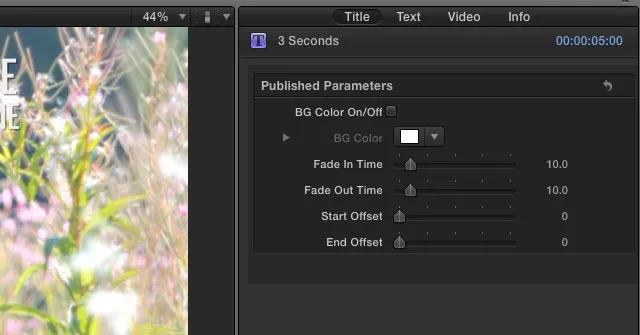
FADER CONTROLS
In the inspector panel under the Title tab you will see the Fader’s controls. You can control the fade-in and fade-out timing and offset, and change the starting offset of these fades to delay them when needed.
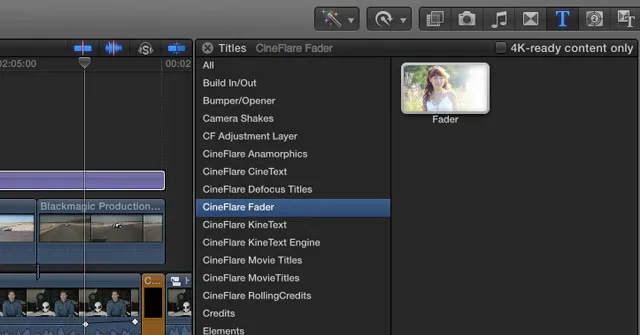
Fader tool
We built Fader as a title effect, so it can be found in the Titles section of the effects browser. We did this so you can easily move and stretch the fade effect freely on the timeline, letting you make changes easily without messing up anything in your edit.
Quickly add the Fader tool to the clip or clips you want on the timeline, set the parameters, and fade it all!