Adobe 2022 Direct Cracked Stable Version - Installation Tutorial
⚠️Notes Before Installation
CGZY is the first to release Adobe installation downloads for all versions, keeping pace with the update speed of Adobe’s official website!
- Before installing the full Adobe 2022 suite, you must first install Adobe Creative Cloud. Without this software, installation and startup will report errors! This is because the Creative Cloud module was rewritten starting with Adobe 2020 and it must be connected to the internet to work — how ridiculous!
If a version runs stably, it is not recommended to update to other newer versions — otherwise, upgrading to a new version can easily cause abnormalities, such as installation failure / activation failure / crashes and so on; there are far too many! Creative Cloud latest download address: see the download panel above
-
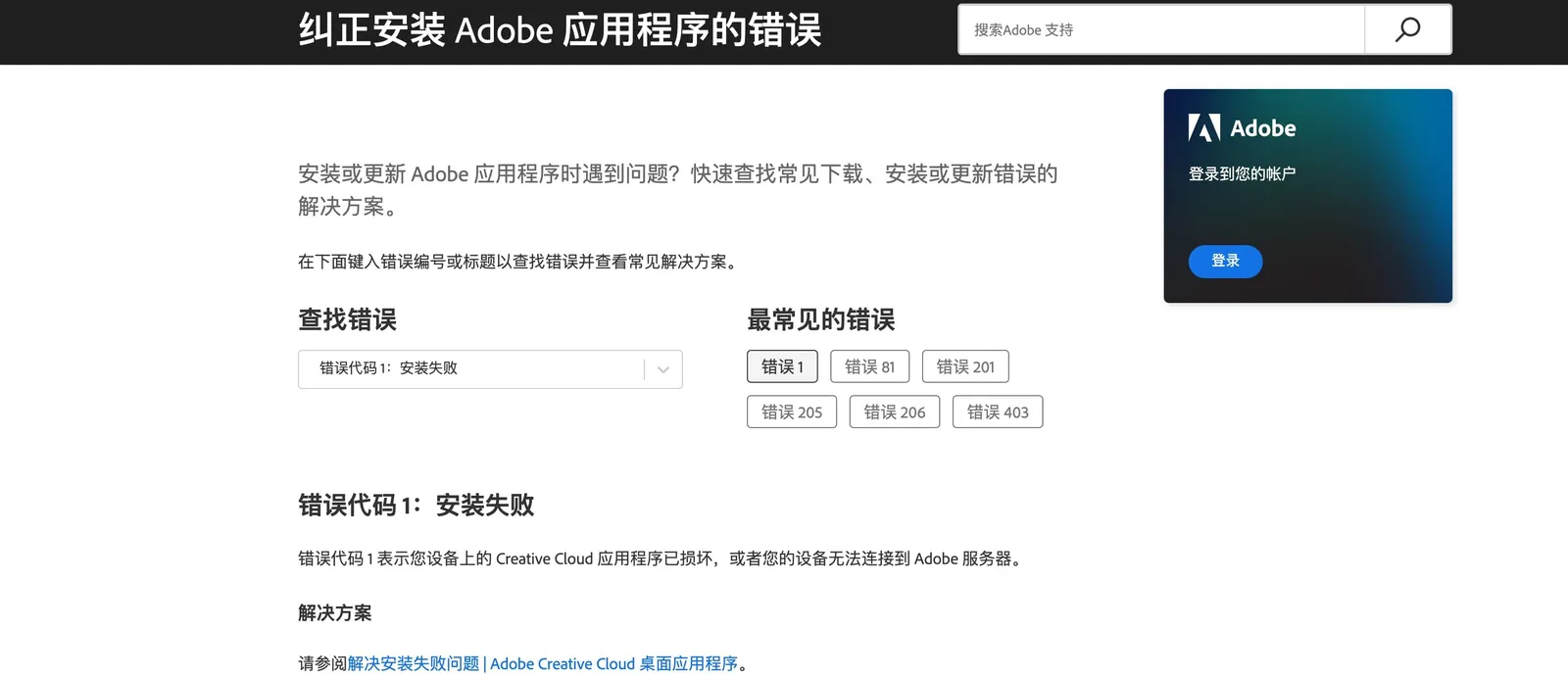
If you encounter various error messages! Just check the Q&A on the left, or the official error codes (solutions):
?[Fix errors when installing Adobe applications](https://helpx.adobe.com/cn/creative-cloud/kb/troubleshoot-download-install-logs.html)[Latest Full Adobe Links]: https://www.cgzy.net/mac/macadobe (All software in this suite supports both M1 and Intel computers! And it keeps pace with the update speed of the official website) -
All Adobe software is recommended to be installed with the network disconnected (actually, disconnecting is not necessary)!
-
All installation methods and tutorials are the same — see the PS installation tutorial for details. Once you can install one, there is no need to read the tutorials after it (learn to apply one example to other cases)!
-
When installing, be sure to check which version number of the software you downloaded, and find the tutorial article for the corresponding version number before installing!
(Do not blindly install following whatever you consider a tutorial article without checking the software version number.)
⚙️Latest Adobe Version Numbers
Items marked ⚙︎ are software updated from Adobe’s official free version — just update the genuine version in ACC! | Version numbers marked in red are the latest official updates | Items marked ✪ support M1
Photoshop v23.3.2 ✪Illustrator v26.3.1 ✪Premirere Pro v22.4 ✪After Effects v22.4 ✪Media Encoder v22.4 ✪Acrobat DC v22.0 ✪InDesign v17.3✪XD v51.0.12 ⚙︎✪LightroomClassic v11.3.1 ✪Dreamweaver v21.2 ✪Character Animator v22.4 ✪Audition v22.4 ✪InCopy v17.3✪Substance Pt v8.1.0Substance Sa v3.3.1Substance Ds v12.1.1UXP Developer Tools v1.5.0 ⚙︎✪
| Dimension v3.4.5 | | Animate v22.0.6 | | Substance Sg v1.2.0 | Bridge v12.0.2 ⚙︎ | | Camera Raw v14.3 ⚙︎ |
❤️Various Issues Summary
A quick overview of various installation error codes?
✧ Fix errors when installing Adobe applications (click me)
✧ The installer says the app is damaged and cannot be opened?
Open Terminal and enter sudo xattr -r -d com.apple.quarantine, add a space, drag the install installer into Terminal, then press Enter.
Enter your login password (the password is invisible while typing), then press Enter! When done, double-click the install package on the desktop to install.
✧ Why does PS still show a trial-expired notice in the top-right corner after opening?
No worries! Just use it normally!!!
It is a display bug and counts as normal behavior; it does not affect usage. It is also possible that you did not install with the network disconnected!
If it really bothers you, use the official uninstall tool to completely remove all Adobe software and components, then reinstall!
✧ What if it shows a remaining trial of xxx days after installation?
This problem is mainly left over from mixing the TNT cracked version / Creative Cloud / activation-free version. Please use the official uninstall tool to completely remove all Adobe software and components, then reinstall. ?Click to download
✧ During installation, it crashes with the “error code 182” prompt — what should I do?
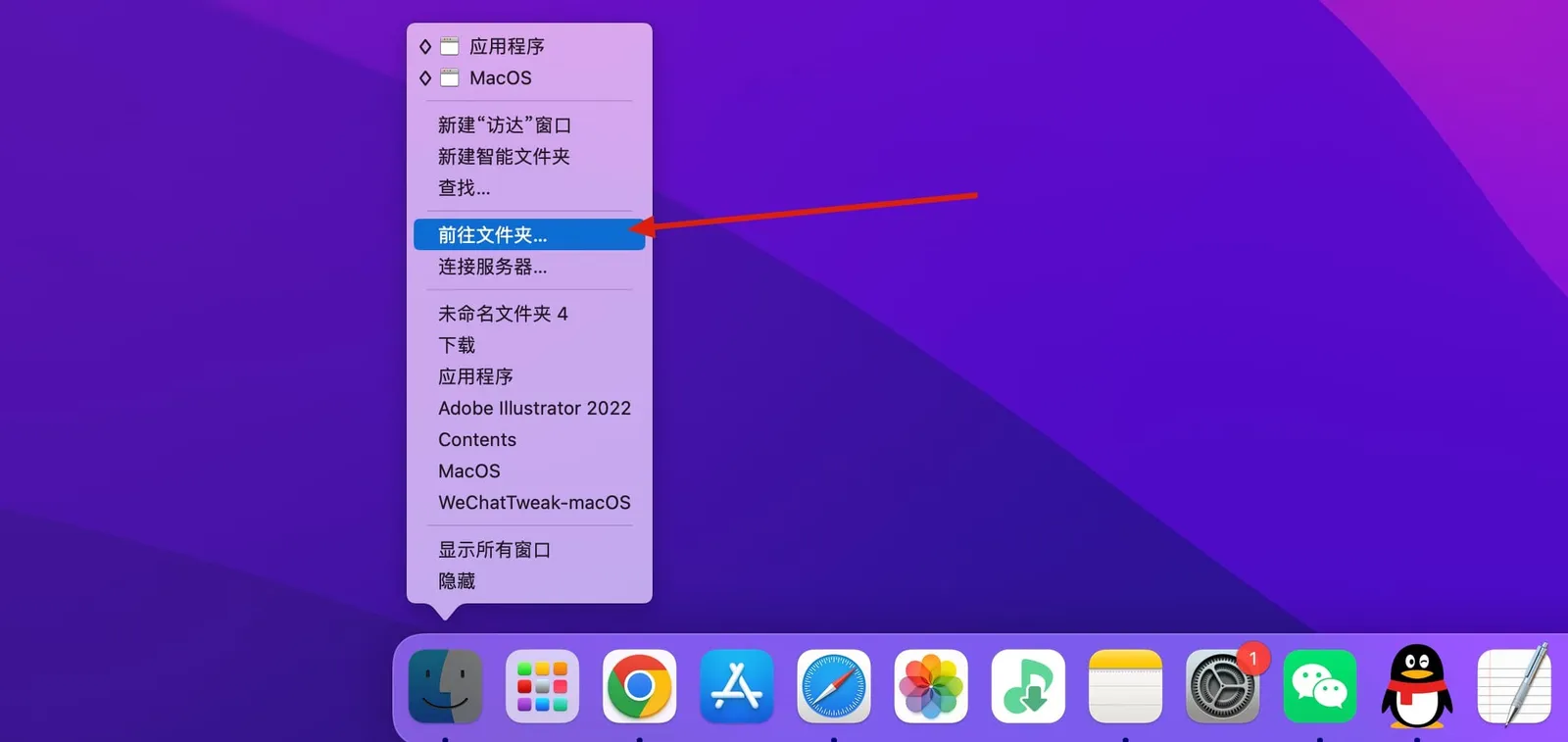
In Finder, click “Go to Folder” - enter the path “/Library/Application Support/Adobe” and press Enter – find the “caps” folder and delete it.
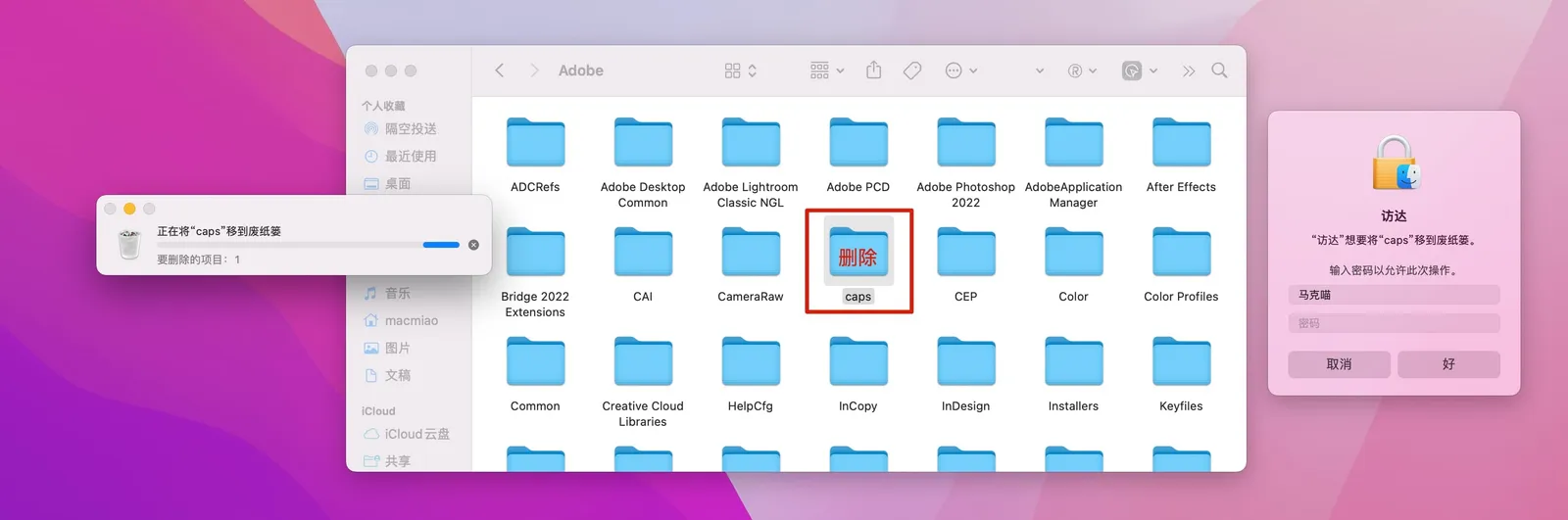
✧ What if it says the Setup file does not exist?
This is actually because you did not install the Creative Cloud manager. Search for and download Adobe Creative Cloud; after installing Creative Cloud, install PS 2022 and it will install normally!
✧ When opening the software, it prompts for keychain access?
Just enter your “login password”! Click “Always Allow” — do this 3 times and it will open normally!
✧ The annoying keychain keeps asking me for my password — what should I do?
-
There is a way to reset the keychain! But use it with caution — it may clear all currently stored keys. I think I clicked clear all…… and then mine were gone.
-
First start up your computer, then ignore the keychain popup, press the shortcut “command+spacebar” and type keychain!
-
After opening Keychain, go to the top-left corner and click “Preferences”
-
Choose “Restore My Default Keychain”
-
Then it will prompt you to enter a new keychain, and will automatically rename and keep the previous keychain
-
At this point it will remind you to show the keychain files; click in to view them and you will find there are a lot of keychain files — just click OK to complete the operation.
-
Now when you restart PS, it will no longer ask you to verify the keychain. And the trial-expired problem you encountered before may be solved along with it!
✧ Sorry, installation failed! Error code 107/108?
This is actually because you did not install the Creative Cloud manager. Search for and download Adobe Creative Cloud; after installing Creative Cloud, install again and it will install normally!
✧ What should I do if the installation shows error code 41?
This is because you used an optimization tool that disabled Adobe’s startup agent items. Please enable all startup agent items that contain Adobe! Using App Cleaner & Uninstaller to manage startup items is recommended.
✧ What should I do if the installation shows error code 501?
It is caused by missing Creative Cloud components. Download and install the latest Creative Cloud from the official website and the problem will be solved.
✧ What should I do if the installation shows error code 301?
This is because you installed directly without closing the already-open Adobe applications! Please quit the Adobe applications and try installing again!
Do not overwrite-install directly! It will definitely not work!
✧ What should I do if the installation shows error code 127?
That is because you did not clean up the old version of the software you are currently installing (do not overwrite-install). Please clean up the old version and then install the new version!
✧ Unknown error in Photoshop “Export As”
How to fix the unknown error in Photoshop Export As: run Photoshop, open its Preferences > Technology Previews, and tick “Enable Optimized Export As”.
✧ What if Photoshop or Illustrator gets stuck on the splash screen?
-
Right-click the Photoshop icon in the Dock and choose Force Quit.
-
Open Finder, go to Applications, find the Utilities folder and open it.
-
Find the Adobe Sync folder and open it.
-
Delete the CoreSync folder.
Installation demo video:
Adobe 2022 Mac Series Download
This module type is not supported for display!